

$ cat README.md
Browser Instance Management Project
Architecture Overview
This project manages multiple isolated browser instances organized in a structured directory layout. Each browser instance runs with its own profile, configuration, and isolated XDG directories.
Directory Structure
/
├── 0001/                   # Folder 1 - Blue theme
│   ├── lw/                 # LibreWolf instances
│   │   ├── 1/              # Instance 1
│   │   │   ├── launch.sh   # Launch script
│   │   │   ├── profile/    # Browser profile
│   │   │   ├── home/       # Isolated HOME
│   │   │   ├── .config/    # XDG_CONFIG_HOME
│   │   │   ├── .cache/     # XDG_CACHE_HOME
│   │   │   ├── .local/     # XDG_DATA_HOME & XDG_STATE_HOME
│   │   │   └── runtime/    # XDG_RUNTIME_DIR
│   │   ├── 2/..8/         # Instances 2-8 (same structure)
│   │   └── [AppImage]      # LibreWolf AppImage
│   └── mlv/                # Mullvad Browser instances
│       ├── 1/..8/          # Instances 1-8
│       └── mullvad-browser/ # Browser binaries
│
├── 0002/                   # Folder 2 - Green theme (same structure)
├── 0003/                   # Folder 3 - Red theme (same structure)
└── archived/                # Archived browser configurations
Key Features
- Isolated Profiles: Each instance maintains its own profile directory
- XDG Directory Isolation: Complete separation of user directories per instance
- Multi-Instance Support: 8 LibreWolf + 8 Mullvad Browser instances per folder
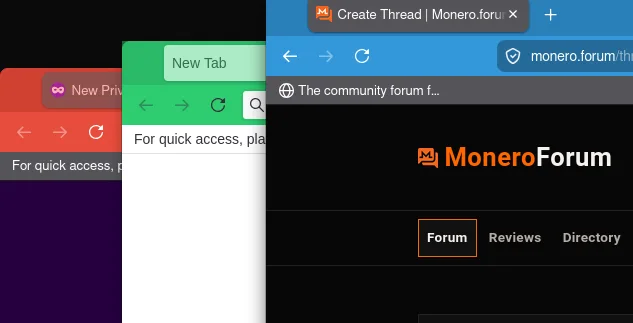
- Color-Coded Folders: Visual distinction between folder groups (see below)
- Audio Support: PulseAudio socket sharing for audio playback
- Sandbox Compatibility: Filters harmless sandbox warnings
Color Coding Implementation
Purpose
Each folder (0001, 0002, 0003) has a distinct color scheme applied to the browser chrome (UI). This provides instant visual identification of which folder a browser belongs to when managing multiple instances.
Color Scheme
Folder Primary Color Tab Bar Color CSS Color Codes 0001 Blue Dark Blue #3498db/#2980b90002 Green Dark Green #2ecc71/#27ae600003 Red Dark Red #e74c3c/#c0392bTechnical Implementation
The color coding uses Firefox's
userChrome.cssmechanism, which styles the browser's UI elements:
- userChrome.css: Created in each instance's
profile/chrome/directory- user.js: Updated to enable custom stylesheets via
toolkit.legacyUserProfileCustomizations.stylesheetsFiles Modified
For each of the 48 browser instances (8 LW + 8 MLV × 3 folders):
- Created:
profile/chrome/userChrome.css- Modified:
profile/user.js(appended preference if not present)userChrome.css Example (0001 - Blue)
/* Color coding for folder 0001 - LW instance 1 */
#navigator-toolbox {
    background-color: #3498db !important;
}

#TabsToolbar {
    background-color: #2980b9 !important;
}

#nav-bar {
    background-color: #3498db !important;
}
user.js Addition
// Enable userChrome.css for color coding
user_pref("toolkit.legacyUserProfileCustomizations.stylesheets", true);
Applying/Reapplying Color Coding
A script is provided to apply or reapply the color coding. The script automatically detects its location, so it can be run from anywhere:
./apply-color-coding.shOr from the project directory:
cd /path/to/sw
./apply-color-coding.sh
This script will:
- Create
chrome/directories in all profile folders- Generate
userChrome.csswith folder-specific colors- Update
user.jsfiles to enable custom stylesheetsVerification
After applying, launch browsers from different folders:
- 0001 browsers → Blue chrome (navigator toolbox and tabs)
- 0002 browsers → Green chrome
- 0003 browsers → Red chrome
Restart any running browser instances to see the changes.
Fingerprinting Considerations
The color coding approach has minimal fingerprinting risk:
- Browser chrome is not exposed to websites - The CSS modifications affect
#navigator-toolboxand#TabsToolbar, which are browser UI elements inaccessible to web pages- No DOM exposure - Unlike
userContent.css(which affects web content),userChrome.cssonly styles the browser's own interface- Preference flag undetectable - Setting
toolkit.legacyUserProfileCustomizations.stylesheets = trueis not exposed through standard web APIsThe existing privacy settings in
prefs.jsprovide robust fingerprinting protection:
privacy.resistFingerprinting.letterboxing = trueprivacy.fingerprintingProtection = trueprivacy.trackingprotection.enabled = true
Launch Script Details
Each instance has a
launch.shscript that:
- Sets up isolated XDG directories
- Configures PulseAudio for audio
- Sets
LD_LIBRARY_PATHfor codec libraries- Launches the browser with:
-profileflag for isolated profile-no-remotefor multi-instance support- Filters harmless sandbox warnings
Example launch command:
./0001/lw/1/launch.sh
Browser Types
LibreWolf (lw)
- AppImage-based deployment
- Privacy-focused Firefox fork
- Instance path:
{folder}/lw/{instance}/Mullvad Browser (mlv)
- Tor-project based browser
- Enhanced privacy and anonymity
- Instance path:
{folder}/mlv/{instance}/- Includes media playback settings in
user.js
File Count Summary
Component Count Total instances per folder 16 (8 LW + 8 MLV) Total instances (all folders) 48 userChrome.css files created 48 user.js files updated 48 Color schemes 3 (one per folder)
Troubleshooting
Colors not showing after applying:
- Ensure browsers are restarted after applying the color coding
- Verify
userChrome.cssexists inprofile/chrome/directory- Check that
toolkit.legacyUserProfileCustomizations.stylesheetsis set totrueinuser.jsTo remove color coding:
# Remove all chrome directories (run from project root)
find 0001 0002 0003 \
  -path "*/profile/chrome" -type d -exec rm -rf {} \; 2>/dev/null
Project Maintenance
- Script location: Relative to project root (
apply-color-coding.sh)- Last applied: Check file timestamps on
userChrome.cssfiles- To modify colors: Edit the color definitions in
apply-color-coding.shand re-run- Portability: Script uses relative paths and can be run from any location
